A guide
How to show your iCloud photos on Apple TV
An Apple TV can show photos from your iCloud library in two ways: in an app that hangs them like pictures on a wall, or as its built-in screen saver. An app like Salon shows just the photos you choose, for as long as you want. The screen saver needs no setup beyond iCloud Photos, but it picks the photos and the timing for you.
First: turn on iCloud Photos on both devices
Your photos reach the Apple TV through iCloud, so iCloud Photos has to be on for the iPhone that takes them and for the Apple TV that shows them, both signed in to the same Apple Account.
- On your iPhone, open Settings, tap your name, then iCloud, then Photos, and turn on Sync this iPhone.
- On your Apple TV, open Settings, go to Profiles and Accounts, choose your name, then iCloud, and turn on iCloud Photos.
Option 1: hang your favourites with Salon
In version 1.4 I added Your Photos to Salon. It shows the photos you have marked as favourites in iCloud Photos, in the same frame and mat as the paintings.
- In the Photos app on your iPhone, tap the heart on each photo you want on your TV. Tap it again to take one down.
- On the Apple TV, open Salon, then Your Photos in the collection, and choose Show My Favourites. Allow Salon to see your photos when it asks.
- Select a photo and choose Display on Frame.
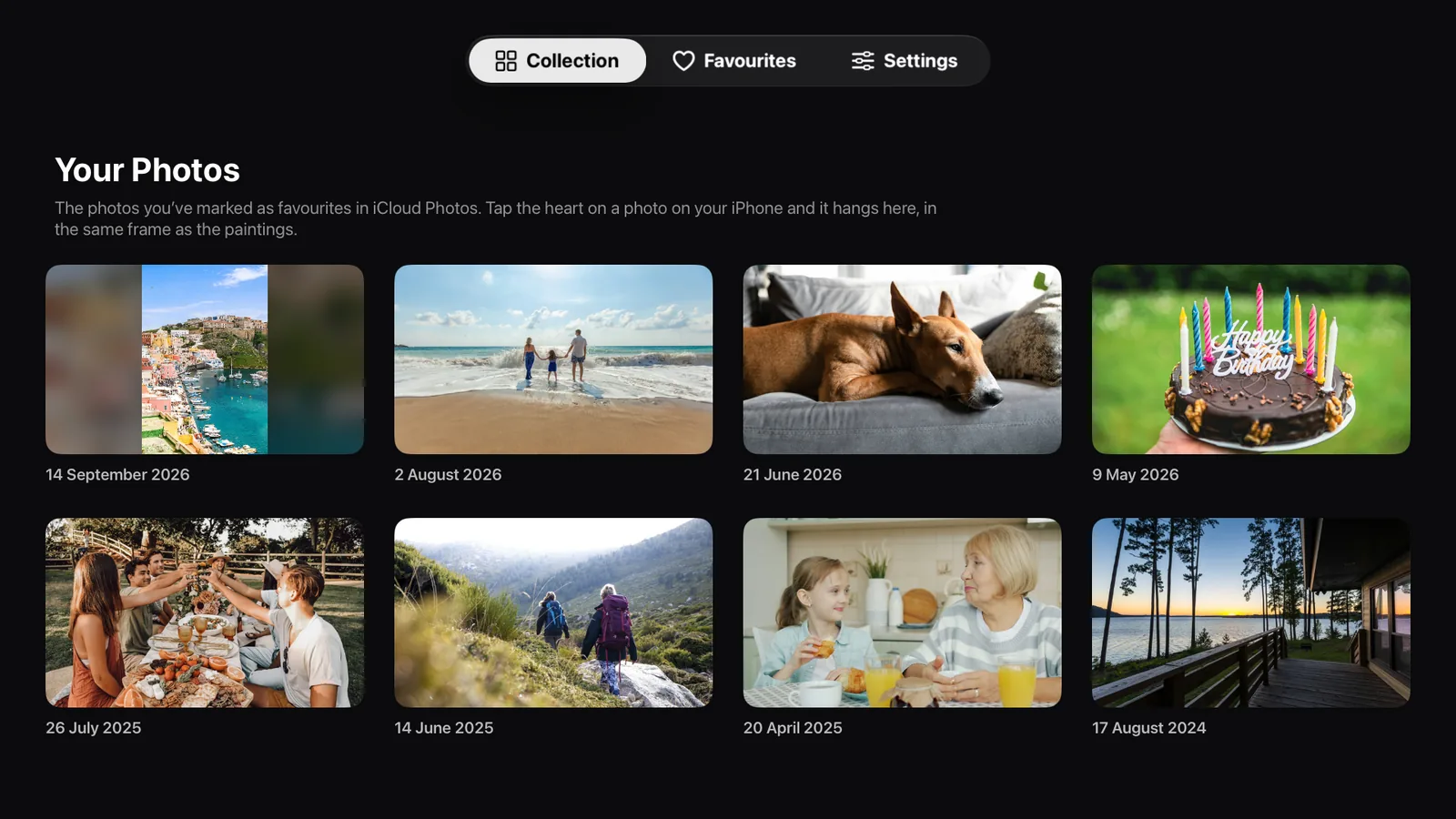

New favourites can take a few minutes to arrive from iCloud. A photo taller than it is wide hangs whole, with a soft, blurred copy of itself filling the sides of the screen. If you want one to fill the screen instead, choose Fill the Screen on its page.

Salon only shows the photos you have marked as favourites. It reads them on the Apple TV and never copies or uploads them.
Option 2: the Apple TV screen saver
On the Apple TV, open Settings, then General, then Screen Saver, and choose your photos as the screen saver type. The Apple TV then shows your photos whenever it has been idle for a few minutes. It is free and built in. The screen saver decides when it starts and how often the photos change, and it goes away as soon as you press a button.
Which to choose
Use Salon if you want specific chosen photos to stay on the wall, framed, alongside paintings from the world's museums.
Use the screen saver if you want your whole library to drift past now and then.

An Apple TV app. On your Apple TV, open the App Store and search for Salon Museum Art. It is listed as Salon: Museum Art Frame.